Rusty Slider

A small tool to display markdown files as a slideshow.
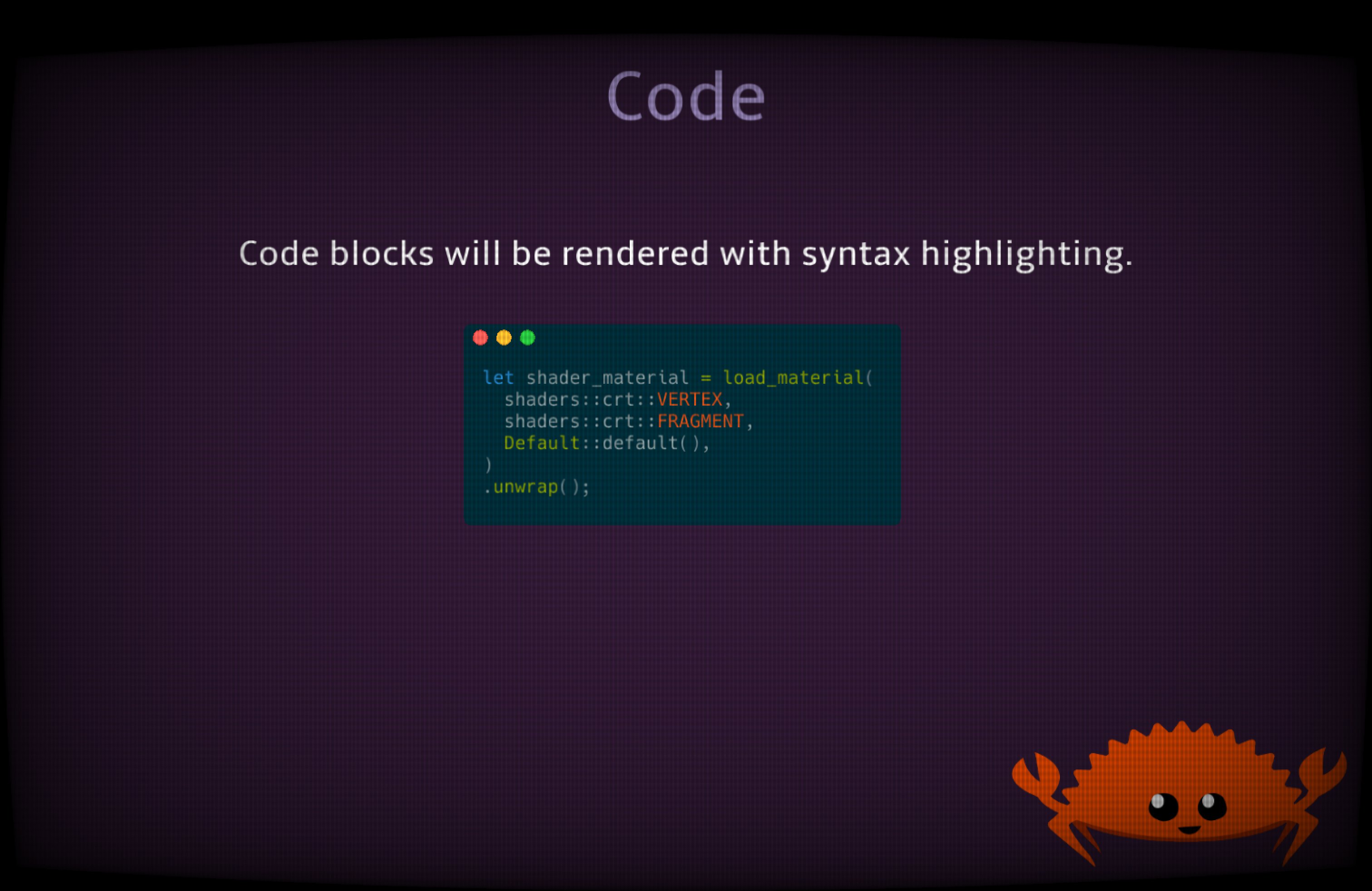
Demo
Try out Rusty Slider online:
Download
Rusty Slider is available for multiple platforms, such as Windows, Linux, MacOS, and the web. Download the latest binary build from github:
https://github.com/ollej/rusty-slider/releases/
Usage
The file assets/rusty-slider.md will be read and split into slides on
horizontal lines: ---
At the moment, the markdown supported is headers, paragraphs, code blocks, blockquotes, simple lists and images. Emphasis and strong are supported if the theme has italic and bold fonts.
Heading level 1 can be used as title page, as it will render in the
middle of the slide and can have a larger font size set by the theme
option font_size_header_title.
You may use html comments (<!-- ... -->) in the markdown for anything you
don’t want to be shown.
Images
Images can be added to the slideshow by using the image markdown It needs to be placed on its own at the start of a line, anything else in the same paragraph will be ignored.

Background image
A default background image can be set in the theme file. In addition to this,
it is possible to override this and set a background image per slide. This is
done by adding an image markdown tag with background as the title text.

Shortcuts
Use Left/H and Right/L keys or left and right mouse button to move
back and forth between slides. Up/K/Home keys jump to first slide,
and Down/J/End keys jump to last slide.
The S key saves the current slide as a PNG on disk.
Press Space to toggle the shader on and off.
On supported platforms C copies the first codeblock to the clipboard.
Use the key Q or Escape to exit the slideshow.
Press ? to show a help screen.
Command line options
To load slideshow files from another directory, use the option --directory <path>.
Slides are read from the path given to the option --slides <path>.
To change the file that theme variables are read from, use the option --theme <path>.
The option --assets <path> is used to change the directory where assets are read from.
Use flag --automatic N when starting the application to automatically switch
slide every N seconds.
The flag --number N can be used to start the slideshow at that slide.
The flag --demo_transitions will switch transition for every slide.
Use the option --screenshot <path> to change which path screenshots are saved to.
Run code blocks
When the command line flag --enable-code-execution is used, it is possible
to run code in code blocks and show the result.
When a code block with a recognized language is showing on a slide, it can be
executed by pressing the enter key. The output will be added in a new code
block at the bottom of the slide.
This feature only works when running locally on a machine that has the interpretator for each language installed. Be careful when using this as there is no checks done on the shell script.
Only the first code block on a slide can be executed.
Supported languages
- Bash
- Python
- Perl
- Ruby
- Rust
Theme
Create a file called assets/default-theme.json to modify default display values.
If you make your own theme file, and want to share it, I’d be happy to add it to the release.
Override theme values
It is possible to override values in the theme file by using the subcommand
theme which has options for every theme value.
Example usage
Set the background color to bright red.
rusty_slider theme --background-color "#ff0000"
Available theme options
      --background-image <image path>
          Background image
      --background-color <hex color>
          Background color
      --heading-color <hex color>
          Heading color
      --text-color <hex color>
          Text color
      --align <alignment>
          Draw alignment [possible values: left, right, center]
      --font <font path>
          Font for normal text
      --font-bold <hex color>
          Font for bold text
      --font-italic <hex color>
          Font for italic text
      --font-size-header-title <number>
          Font size for header title
      --font-size-header-slides <number>
          Font size for header on slides
      --font-size-text <number>
          Font size for normal text
      --vertical-offset <number>
          Vertical offset
      --horizontal-offset <number>
          Horizontal offset
      --line-height <number>
          Line height of text
      --blockquote-background-color <hex color>
          Background color of blockquotes
      --blockquote-padding <number>
          Padding of blockquote box
      --blockquote-left-quote <string>
          Character to use for opening quotation mark on blockquotes
      --blockquote-right-quote <string>
          Character to use for closing quotation mark on blockquotes
      --font-code <hex color>
          Font for code blocks
      --font-code-size <number>
          Font size for code blocks
      --code-line-height <number>
          Line height for code blocks
      --code-background-color <hex color>
          Background color of code blocks
      --code-theme <string>
          Code block color highlighting theme
      --code-tab-width <number>
          Tab width in code blocks
      --bullet <string>
          Character to use for bullet points
      --shader <boolean>
          Whether to activate shader [possible values: true, false]
      --transition <transition name>
          Slide transition to use when changing slides [possible values: bignoise, blobs, checkerboard, circleswipe, cubicnoise, curtainsclose, curtainsopen, diagonalleft, diagonalright, fan, halftone, implode, lines, maze, mosaic, noise, plasma, radialin, radialout, smoke, split, starburst, stripes, swipedown, swipeleft, swiperight, swipeup, swirl, triangles, vortex, waves, zebra]
Transitions
These are all the available transitions that can be used in the option
transition.
- bignoise
- blobs
- checkerboard
- circleswipe
- cubicnoise
- curtainsclose
- curtainsopen
- diagonalleft
- diagonalright
- fan
- halftone
- implode
- lines
- maze
- mosaic
- noise
- plasma
- radialin
- radialout
- smoke
- split
- starburst
- stripes
- swipedown
- swipeleft
- swiperight
- swipeup
- swirl
- triangles
- vortex
- waves
- zebra
Available code themes
The following code themes can be set in the config option code_theme:
- base16-ocean.dark
- base16-eighties.dark
- base16-mocha.dark
- base16-ocean.light
- InspiredGitHub
- Solarized (dark)
- Solarized (light)
Example theme.json
{
    "background_image": "assets/background.png",
    "background_color": "#753204",
    "heading_color": "#8f4d22",
    "text_color": "#cccccc",
    "align": "right",
    "font": "assets/Amble-Regular.ttf",
    "font_bold": "assets/Amble-Bold.ttf",
    "font_italic": "assets/Amble-Italic.ttf",
    "font_size_header_title": 100,
    "font_size_header_slides": 80,
    "font_size_text": 40,
    "vertical_offset": 20.0,
    "horizontal_offset": 100.0,
    "line_height": 2.0,
    "blockquote_background_color": "#333333",
    "blockquote_padding": 20.0,
    "blockquote_left_quote": "“",
    "blockquote_right_quote": "„",
    "font_code": "assets/Hack-Regular.ttf",
    "font_code_size": 20,
    "code_line_height": 1.2,
    "code_background_color": "#002b36",
    "code_theme": "Solarized (dark)",
    "code_tab_width": 2,
    "bullet": "• ",
    "shader": true,
    "transition": "swirl"
}
Command line options
The command line options can also be used as URL arguments to the web demo.
An application to display markdown files as a slideshow.

Usage: rusty_slider [OPTIONS] [COMMAND]

Commands:
  theme  Override values in the theme file
  help   Print this message or the help of the given subcommand(s)

Options:
  -d, --directory <DIRECTORY>    Path to directory to load slideshow files from [default: assets]
  -s, --slides <SLIDES>          Markdown file with slides text [default: rusty-slider.md]
  -t, --theme <THEME>            File with theme options [default: default-theme.json]
  -a, --automatic <AUTOMATIC>    Automatically switch slides every N seconds [default: 0]
      --demo-transitions         Switch transitions for every slide
  -S, --screenshot <SCREENSHOT>  When taking screenshot, store PNG at this path [default: screenshot.png]
      --enable-code-execution    Enable executing code in code blocks
  -A, --assets <ASSETS>          Path to directory where application files are loaded from [default: assets]
  -n, --number <NUMBER>          Slide number to start at [default: 1]
  -h, --help                     Print help
Licenses
Rusty Slider
Copyright 2022 Olle Wreede, released under the MIT License.
Amble font
By Punchcut Apache License Version 2.0, January 2004 http://www.apache.org/licenses/
Hack font
Copyright Chris Simpkins SIL OFL 1.1 and Bitstream Vera v0.00 https://www.fontsquirrel.com/license/hack
Transition
Copyright (c) 2021 TanTanDev MIT License